Showing posts with label apps. Show all posts

Sunday, May 2, 2010

Lucid apps replaced

Not too happy with some apps that come pre-installed in Lucid.

1. Empathy out, Pidgin in.
2. Evolution out, Thunderbird + Lightning in.
3. gnome-screenshot out, Shutter in.

To remove apps in 1 & 2, I used Ubuntu-tweak.  Nice app, this one.
Helped make it easier to install the following:

1. Pidgin - for Yahoo, MSN messenger
2. Shutter - for getting screenshots
3. VLC - for my music, movies
4. Gimp - for my photo-editing
5. Audacity - for my audio-editing
6. Dia - for my flowcharts, diagrams, Visio-like 
7. Chromium web browser - just for variety, in case I get bored with FireFox

For these, I used Ubuntu's Synaptic Package Manager:
8. Thunderbird 3 - my office email
9. Ubuntu-restricted-extras - for a whole lot of YouTube viewing, Java for Firefox
10. checkgmail  - for my multiple GMail accounts
11. g2ipmsg 

And some manual installations:
12. GoogleEarth from the Medibuntu package, pretty simple double-click on the debian package 
13. Truecrypt - another simple install double-click on the deb package

Wednesday, April 28, 2010

Thunderbird 3.xx on Ubuntu

Note:  These steps only apply to Ubuntu versions prior to 10.04. Lucid Lynx already has Thunderbird 3 in its repositories.
 
Thunderbird 3 repository you add to your sources list to make Ubuntu automatically detect Thunderbird updates.

Testing this in Ubuntu 10.04 - from a fresh install.
1. From a terminal window, type:
echo -e "\ndeb http://downloads.sourceforge.net/project/ubuntuzilla/mozilla/apt all main" | sudo tee -a /etc/apt/sources.list > /dev/null

2. Open Synaptic Package Manager and search for Thunderbird

3. Go and install.

This is a departure from my first approach from previous posts - that of downloading directly from the Thunderbird website and installing manually.

Taken from this Linux Mint post from user remoulder.

Saturday, April 24, 2010

Email notifier for multiple GMail accounts

In Synaptic Manager, install the package checkgmail
Installing it in Ubuntu 9.10 fetches its latest version 1.13+svn43-0ubuntu1.

These steps demonstrate setting up 2 gmail accounts for checkgmail to notify you with:
1. Set up your first, and default profile
Applications > Internet > CheckGMail

2. After that works, quit checkgmail to setup your 2nd profile.

3. Open a terminal window, and type the following, replacing the my2nd word with your preferred profile name:
checkgmail -profile=my2nd

4. After that works, quit checkgmail again.

5. To make the two checkgmail profiles to automatically start at boot-up,
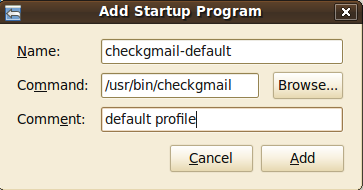
System > Preferences > Startup Applications
Click Add to add your default profile.

sources of the bits and pieces I put together for this post:
1. how to check emails for multiple gmail accounts - ubuntu thread
2. how to make checkgmail automatically startup in ubuntu (not the exact steps, but heck I got the pattern)

Thursday, April 1, 2010

Skype in Ubuntu

Reference: Ubuntu how-to

1. Update the package manager's sources
echo "deb http://download.skype.com/linux/repos/debian/ stable non-free #Skype" | sudo tee -a /etc/apt/sources.list > /dev/null

2. Get the Apt key, to allow future updates to happen
gpg --keyserver pgp.mit.edu --recv-keys 0xd66b746e && gpg --export --armor 0xd66b746e  | sudo apt-key add -

3. Install the Skype package
sudo aptitude update && sudo aptitude install skype

Installing Java for my Xubuntu Firefox

Xubuntu 9.04, Firefox 3.5.8
But Java won't run in my browser for my favorite hearts game on the Web.
In the terminal window:
java -version
shows -
java version "1.6.0_0"
OpenJDK Runtime Environment (IcedTea6 1.6.1) (6b16-1.6.1-3ubuntu1)
OpenJDK Client VM (build 14.0-b16, mixed mode, sharing)

sudo update-java-alternatives -l
shows -
java-6-openjdk 1061 /usr/lib/jvm/java-6-openjdk


To run Java applets in OpenJDK, I had to install this plugin:
sudo apt-get install icedtea6-plugin

Restarted the browser, and I'm done. Java applet now working.
Reference: Ubuntu Forums thread

Tuesday, March 16, 2010

Virtualbox 3.1 in Karmic

Ubuntu Karmic uses the OSE (open source edition) of Virtualbox, which I didn't particularly like because of the limitations - no USB support, for one.

Resource site: http://www.virtualbox.org/wiki/Linux_Downloads

I downloaded the full package from the Virtualbox site here.

Then added to the end of my sources.list file the deb reference:
sudo gedit /etc/apt/sources.list
at the end of the file -
deb http://download.virtualbox.org/virtualbox/debian karmic non-free
and ran this in the terminal:
wget -q http://download.virtualbox.org/virtualbox/debian/sun_vbox.asc -O- | sudo apt-key add -
checked if I needed dkms package (to ensure that the VBox kernel gets updated when the Linux kernel is)
sudo apt-get install dkms
and finally the VirtualBox package itself:
sudo apt-get install virtualbox-3.1

Saturday, March 13, 2010

Back in Ubuntu (still Karmic)

I'm back in Ubuntu after nearly a month in Linux Mint, loving it, then saddened by the loss of sound and inability to use the LCD out, then finally deciding to what-the-heck it all and reformatted my hard disk.

Steps:
1. Do fresh install from the Live CD
2. Perform ALL detected package updates
3. Removed Evolution (from Ubuntu Software Center)
4. Removed Empathy (from USC)
5. Installed Pidgin (from USC)
6. Installed Thunderbird 3.0.3 (downloaded from Mozilla)
- it's a tar.bz2 file, untar in a user-created folder
- create a launcher pointing to the thunderbird file
7. Install the Lightning add-on
8. Create my office profile in Thunderbird, complete with the POP & SMTP settings
9. Copy my backup profile folder to the new profile folder
10. Install Flash in my Firefox from here: https://help.ubuntu.com/community/RestrictedFormats/Flash
11. Install VLC, making sure multiverse repositories (in Synaptic) are checked. Also used this URL for reference: http://www.videolan.org/vlc/download-ubuntu.html
I didn't go the path of the PPA (as my older post advised); instead just picked the VLC package in Synaptic.

YES! I GOT SOUND! - 13 March 2010 1313h

12. Reinstall IPMsg using my old posts as reference.

Now on to Ruby on Rails...

Friday, March 5, 2010

Plustek OpticSlim Plus M12 in Ubuntu Karmic Netbook remix

1. Install SANE package (or is it XSANE)?
2. Downloaded the scanner's firmware file from the link in this URL: http://gkall.hobby.nl/gt6816-07b3-0412.html

that was it!

Tuesday, February 23, 2010

Linux Mint 8 (Helena)

Packages for the workplace:

1. Google Chrome - downloaded .deb package from Google website, with update to etc-sources list

2. Thunderbird 3 - tar.gz download; uninstall the Thunderbird 2 first, then run the thunderbird file. Not as painless an installation as Chrome was.

3. 7z - p7Zip-full package in Mint's Synaptic is more than enough. Installing this automatically makes 7z available as a format to extract or add archives to with the built-in right-click Compress option of Linux Mint.

4. VLC - again... already in Synaptic.

5. IPMsg - using instructions and dependencies from my earlier posts.


Sunday, November 15, 2009

audacity in karmic, ffmpeg source to package

OPEN ISSUE: below steps didn't work. removed everything afterwards.

had another steep learning curve to get a simple thing done here.
making audacity work and import audio from a video (mp4) file. it complained about not having ffmpeg.

wish the ubuntu guys would get their act together - if you already have a package in the repository, why do you have to download SOURCE, then COMPILE, then do all these geeky stuff? all the more intimidating for the millions of computer users out there.

my references:

1. http://ubuntuforums.org/showthread.php?t=786095

2. http://daily-hacking.blogspot.com/2009/08/ffmpeg-with-amr-support-on-ubuntu.html

Sunday, November 1, 2009

Karmic Upgrade

It's been a while.

Yesterday and today I upgraded 9.04 with 9.10. Yesterday for downloading the packages, and today for the actual upgrade. After rebooting, it couldn't boot up at first.

Turns out the culprit was the AVIRA Guard, that kept some DazukoFS entries in my /etc/fstab.

Commenting those out solved the problem.

Still in ext3, though.

Tuesday, September 8, 2009

Testing AVG on Ubuntu, and learning some scripts

tested the AVG scanner to detect EICAR test virus, passed with flying colors

sample command-line in terminal:
avscan Downloads/*

recursive scan, from the current point down to the Downloads folder.

Also made some 3-liner scripts (and launchers) in my desktop:
scanner:
#!/bin/sh
sudo avscan /media/NANO/*
read -p "Press Enter to continue" nothing

updater:
#!/bin/sh
sudo /usr/lib/AntiVir/avupdate --product=Guard
read -p "Press Enter to continue" nothing

Avira AntiVir on Ubuntu

Avira seems to be better at detecting Windows viruses than ClamAV, as I experienced today scanning the same USB device on 2 machines. Avira (in Windows) spotting 6 worms vs. ClamAv's 1 detection.

So I decided to give Avira in Ubuntu a shot.
System snapshot info:
Ubuntu 9.04
Kernel Linux 2.6.28-15-generic
GNOME 2.26.1


Here's how I got it to work:
1. Download the Linux Avira Antivir installer here: http://www.free-av.de/en/download/download_servers.php
My downloaded copy was antivir_workstation-pers.tar.gz

2. In a terminal window, execute:
tar -xvf antivir_workstation-pers.tar.gz
This created a folder named antivir-workstation-pers-3.0.5-11 in my download folder.

3. Still in the terminal window, cd to the created folder and type:
sudo ./install

4. Follow the prompts (I just based on common sense). Link references:
There's no GUI! A minor hassle, though. It will install in the /usr/lib/AntiVir folder.

Terminal commands learned:
To update the engine & signatures:
sudo avupdate --product=Guard
To scan a USB drive:
sudo avscan /media/disk

Friday, September 4, 2009

ClamAV and front-end GUI ClamTK

useful antivirus scanner for making the Ubuntu box a USB virus cleaner device

tested in Ubuntu 9.04
1. download clamav package (& all detected dependencies) using Synaptic
2. download libnet-dns-perl package (& all detected dependencies) using Synaptic
3. download the latest Ubuntu package of clamtk in http://clamtk.sourceforge.net/
4. using a terminal window, navigate to the folder of the downloaded deb package.
5. type sudo dpkg -i {name of downloaded clamtk deb}

Sunday, July 19, 2009

Installing VLC and learning about PPA along the way

Missing my favorite media player, I google'd and found out that there is a VLC for Ubuntu.

The catch is this: it isn't a default package available out-of-the-box in Jaunty.

So here are the steps, basically:

  1. Add the VLC packages in Ubuntu's software sources

  2. Tell Ubuntu to authenticate the VLC's PPA

  3. Update Synaptic and install VLC


These are the packages to install:


  • vlc


  • vlc-plugin-esd


  • mozilla-plugin-vlc


My references:

Saturday, July 18, 2009

Ubuntu 9.04 in my dual-boot - 1, and IPMsg :-)

Yesterday I took a bigger step. I installed Ubuntu in another partition in my office laptop, not merely as a virtual guest.

So far, so good.

After doing the initial, fresh-install updates (via Update Manager):

1. Installed gnome IPMSG, our inter-office internal messaging client. This was a pleasant experience :) - thanks to blogger necramirez for this excellent reference.

Links for the how-to, I found here (http://blog.necramirez.info/2008/07/installing-gnome2-ipmessenger.html). This worked for me without problems.
You have to install the dependencies first, as follows:
  • libxml-parser-perl
  • libgnomeui-dev
  • libpanel-applet2-dev
  • gettext
  • intltool
After that, get the gnome IPMSG here (http://www.ipmsg.org/index.html.en).
The link I followed is the one under Unix, titled GNOME2 IP Messenger by T.Kato (2008/10/27).
It might have a newer version by the time you visit the site.

I followed the instructions how to unpack/make/run and soon after I got IPmsg working smoothly.

2. Now, my adventure continues. I'm planning to install NetBeans. First off, install the Java packages.

My reference is in the Ubuntu forums, on the thread titled "Ubuntu Desktop Computing Made Easy (Ubuntu 9.04)" - thanks to contributor TrakerJon
Here's the piece on java:
Install the latest Sun Java JRE
sudo apt-get install gsfonts-x11 java-common odbcinst1debian1 sun-java6-bin sun-java6-fonts sun-java6-jre sun-java6-plugin unixodbc